
Lightning

Parent to child communication in LWC

For a parent component to communicate with child component, A child component exposes a property or method to make that variable publicly available. Then the parent can update the child’s public property or call child’s function.

To make a property or method public, LWC component will be annotated with @api. To expose a public method, decorate it with @api. Public methods are part of a component’s API. To communicate down the containment hierarchy, owner and parent components can call JavaScript methods on child components.

In the child to parent communication you can see in child component @api childName = ‘’ is declared. This is a small example of Parent to child communication. In parent component, when the child component is called, the @api annotated property is used to send information to child component.

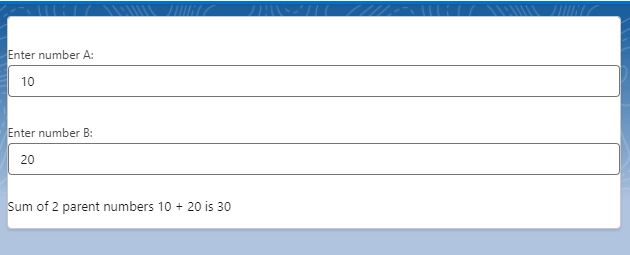
Today we will see how components methods communicate down the hierarchy i.e from parent to child using a small example. We will have 2 numbers in parent component which are passed to child. We will call a child method to add those 2 numbers and display the sum in child component. Just for reference Parent component name is Guru and Child component name is Chela (I have components names parent and child with previous examples).

guru.html (Parent component)

<template>
    <div class="slds-theme">
        <lightning-card  title={childName}>
        <lightning-input type="number"
                         label="Enter number A:"
                         value={value1}
                         onchange={handleValue1Change}
        ></lightning-input>

        <br/>

        <lightning-input type="number" 
                         label="Enter number B:"
                         value={value2}
                         onchange={handleValue2Change}
        ></lightning-input>

        <br/>

        <c-chela value1={value1} value2={value2}></c-chela>
        </lightning-card>
    </div>
</template>

guru.js (Parent component)

import { LightningElement } from 'lwc';

export default class Guru extends LightningElement {
    value1 = 0;
    value2= 0;

    handleValue1Change(event){
        this.value1 = event.target.value;
        this.template.querySelector('c-chela').addNumbers();

    }

    handleValue2Change(event){
        this.value2 = event.target.value;
        this.template.querySelector('c-chela').addNumbers();
    }
}

Here, We have mentioned the child component in parent component and chela.js (Child component) and if you see this.template.querySelector(‘c-chela’).addNumbers(); in guru.js file, we are calling chela component’s addNumbers method from parent component guru.js

chela.html (Child component)

<template>
    <div class="slds-theme">
        Sum of 2 parent numbers {value1} + {value2} is {sum}
    </div>
</template>

chela.js (Child component)

import { LightningElement, api } from 'lwc';

export default class Chela extends LightningElement {

    @api value1 = 0;
    @api value2 = 0;
    sum = 0;

    @api 
    addNumbers(){

        setTimeout(() => {
            // adding 2 parent component numbers value1 and value2
            this.sum = parseInt(this.value1) + parseInt(this.value2); 
        }, 300);

    }
}

Output:
Lightning

Child to Parent Communication in LWC

For a child component to communicate with parent component, A child component dispatches a custom event that triggers an update in the parent component. While sending an event to parent component, you can choose to send data and you can allow the event to bubble up through DOM. Along with an event, you can send custom information and make use of that information to update something.

Parent to Child communication

If you have used custom lookup component in LWC, this component works on Child to Parent communication, where a user selected record is dispatched as an event to parent component where it is captured and shown as a pill. This is just a small example.

In this blog we will see how to use the custom event method with a small example.

We have 2 components here

1)Parent component
2)Child component

parent.html

<template>
    <lightning-card  title="Hello this is Papa Cpmponent">
        
        <p class="slds-p-horizontal_small">
            <lightning-input  type="text" label="Name" value={Name} read-only="true" ></lightning-input>
            <lightning-input  type="text" label="Actor" value={Actor} read-only="true" ></lightning-input>
            <lightning-input  type="text" label="Movie" value={Movie} read-only="true" ></lightning-input>
            <lightning-input  type="text" label="Punchline" value={Punchline} read-only="true" ></lightning-input>

        </p>

        <div slot="footer">
            <div class="slds-grid slds-gutters">
                <div class="slds-col">
                    <c-child-comp child-name="Raju" oncharacterinfo={handle_Details}> 
                    </c-child-comp>
                </div>
                <div class="slds-col">
                    <c-child-comp child-name="Vicky" oncharacterinfo={handle_Details}> 
                    </c-child-comp>
                </div>
                <div class="slds-col">
                    <c-child-comp child-name="Baburao" oncharacterinfo={handle_Details}> 
                    </c-child-comp >
                </div>
              </div>
        </div>
    </lightning-card>
</template>

parent.js

import { LightningElement } from 'lwc';

export default class Papa extends LightningElement {
    Name;
    Actor;
    Movie;
    Punchline;

    handle_Details(event){
        
        console.log(JSON.stringify(event.detail));
        
        this.Name = event.detail.a_Name;
        this.Actor = event.detail.a_Actor;
        this.Movie = event.detail.a_Movie;
        this.Punchline = event.detail.a_Punchline;

        console.log ('-=-= name: '+this.Name);
        
    }
}

If you observe papa.html file. I have used a lightning card, with body and footer.

The body part will only display details that we receive from child component

Footer part has child components which is used 3 times representing 3 different movie character.

childComp.html

<template>
    <lightning-card  title={childName}>
        
        <lightning-button 
            variant="brand"
            label="Check Details" 
            onclick={handleClick} 
        ></lightning-button>
        
    </lightning-card>
</template>

childComp.js

import { LightningElement,api } from 'lwc';

export default class ChildComp extends LightningElement {
    @api childName = '';
        
        Name = '';
        Actor = '';
        Movie = '';
        Punchline = '';
    
        handleClick(event){
            console.log('child click event: '+event);


            switch (this.childName) {
                case 'Raju': 		
                    
                this.Name = 'Raju';
                this.Actor = 'Akshay Kumar';
                this.Movie = 'Hera Pheri';
                this.Punchline = 'Paisa hi paisa hoga!';
                
                break;
    
                case 'Vicky': 	
                    
                this.Name = 'Vicky Chopra';
                this.Actor = 'Amitab Bachchan';
                this.Movie = 'Sharabi';
                this.Punchline = 'Mooche Ho Toh Nathulal Ji Jaise Ho... Varna na ho';
                    
                break;
            
                case 'Baburao': 		
                    
                this.Name = 'Baburao Ganpatrao Apte';
                this.Actor = 'Phir Paresh Rawal';
                this.Movie = 'Hera Pheri';
                this.Punchline = 'Uthala le re baba';
                    
                break;
                
                default: 
    
                break;
                
            }
    
            console.log('-=-= in child: '+this.Name);
            console.log('-=-= in child: '+this.Movie);
            console.log('-=-= in child: '+this.Actor);
            console.log('-=-= in child: '+this.Punchline);
    
            const a_Name = this.Name;
            const a_Movie = this.Movie;
            const a_Actor = this.Actor;
            const a_Punchline = this.Punchline;
    
            const selectedCharacter = new CustomEvent('characterinfo', {
                detail: {
                    a_Name,
                    a_Movie,
                    a_Actor,
                    a_Punchline
                },
            });
            this.dispatchEvent(selectedCharacter);
    
        }
}

If you see child component’s html part. I have just added a button to click and get details.

In childComp.js file, button click event, Based on name of the child component, details will be fetched using switch statement.

This is the place where you can add custom code and make some server calls to get any other details as per requirement.

I have used a constant called selectedcharacter which is a custom event.

const selectedCharacter = new CustomEvent('characterinfo', {
                detail: {
                    a_Name,
                    a_Movie,
                    a_Actor,
                    a_Punchline
                },
            });
            this.dispatchEvent(selectedCharacter);

here, if you observe ‘characterinfo’ that is the event name, you can replace it with any character that you want. Any name that you use in child component, in parent you must have an on as an event

If you observe how the component is called in parent component,

<c-child-comp child-name="Raju" oncharacterinfo={handle_Details}> 
                    </c-child-comp>

name of the component is saved as childComp. while using the component in a parent component, there will be no CAPITAL case for any character, if there is a Capital case, it will be replaced with -<small case of same character>. In above example, childComp, here C is capital so while using in parent compnent, we have to mention -c. that is the reason we have used <c-child-comp >

oncharacterinfo ={handle_Details} is used for custom event details. If you use custom event as moviecast, then in parent component you must use onmoviecast as event name and call a method to handle that event.

If you observe the child component, you see detail as a variable, this is a event property, you can also use details as event property. Please note, you cannot use any other variable, you have to be specific and it should be one of the property of event.

Output

TitanDXP

Step-by-Step Guide to Creating E-Commerce Portals with Titan for Salesforce

Taking your commerce efforts digital is a great way for your business to expand its reach and enhance the customer experience. Selling your products face-to-face can only get you so far in today’s digital climate. Not only is the traditional method time-consuming, but it also limits your reach to customers. Going online means that many customers can interact with your e-commerce platform at once from across the globe. You can also create separate platforms for selling your products to customers and businesses. By tailoring the experience per customer type, you can assure an enhanced experience that keeps your business profitable. 

Leveraging the power of your Salesforce CRM data to build a powerful e-commerce platform can meet the needs of B2B and B2C transactions. This guide aims to walk you through why you should choose Titan as the tool to build your B2B e-commerce portals, provide you with a breakdown of e-commerce Salesforce portals, and cover how Salesforce can enhance your B2B e-commerce. 

What are E-commerce Portals?

E-commerce portals are digital platforms that facilitate the buying and selling of your goods and services. You can consider these dynamic e-commerce portals as virtual storefronts where you can display your products and services for customers to browse. Perfect for facilitating your business-to-business (B2B), and business-to-consumer (B2C) transactions. Creating Salesforce e-commerce platforms offers the convenience of shopping from anywhere at any time. Key features of e-commerce platforms include secure payment gateways, detailed product listings, user-friendly interfaces, shopping carts, inventory management, and order management systems. 

How to Create an E-commerce Portal

Creating your e-commerce Salesforce portal can seem like a daunting task. We’ve created a general guide for you to follow to design, develop, and launch your B2C and B2B e-commerce portals. These steps will differ depending on your specific Salesforce edition or if you have chosen a third-party solution. 

  1. Start with your planning and research. Decide what products and services you want to sell and who your target audience will be. At this stage, you will need to determine whether you are creating a B2C to B2B e-commerce platform. Consider the type of revenue model you will use such as direct sales, commission, or subscription. 
  2. Choose your e-commerce platform while considering customization options, scalability, cost, and ease of use. 
  3. Decide on a domain name that is both easy to remember and relevant to your business. Ensure you choose a reliable hosting provider that can handle your anticipated traffic. 
  4. Design your portal ensuring your interface is easy to use and intuitive. Visitors should be able to smoothly navigate through the checkout process without having to contact your business for assistance. Your website should align with your business brand for a cohesive experience. 
  5. Customize the platform to suit your business needs. Include product listings with detailed descriptions, high-quality images, inventory information, and pricing. Integrate secure payment options. Set up shipping methods and include tax calculations based on the customer’s location. 
  6. Implement security measures to protect your customer’s data and ensure your portal has an SSL certificate. 
  7. Test your portal before launching. Conduct rigorous testing to ensure your product search, checkout, payment processing, and order management work correctly. Test portal performance under different traffic conditions to ensure the user experience is not affected.
  8. Launch your portal and make it accessible to the public. Keep an eye on the performance of your website and make any necessary changes to keep your performance optimal. 
  9. Optimize your portal using search engine keywords so your portal pops up when users search for it. Use marketing efforts to promote your portal and drive traffic to the site. 
  10. Use analytics tools to track user behavior, metrics, and sales. Provide customer support to handle customer queries and resolve their issues promptly. 

Creating an e-commerce portal requires careful consideration and planning. Consult your technical experts throughout the process to create a robust and successful e-commerce platform. 

Titan Enhances Salesforce B2B Commerce Cloud

Titan is the top Salesforce e-commerce solution on the market. Offering robust customization capabilities, you can enhance your Salesforce e-commerce B2B portals to deliver exceptional and tailored experiences. Using Titan, you can create B2B Salesforce e-commerce clouds without needing to know any code. This means you become the technical expert and have the power to build your own e-commerce portals minus needing expensive custom development solutions. 

Features of Titan’s E-commerce Portal

Let’s highlight some of the key features of this powerful Salesforce e-commerce platform builder. Titan offers a drag-and-drop interface so you can create and modify your pages, workflows, and forms without any coding knowledge. You can choose from a variety of customizable themes and templates to make the design process easier. These templates are launching pads so you don’t need to start from scratch. Unlike other tools on the market, the templates are completely customizable so you can change and edit them to match your company branding. 

You can create custom workflows that handle order processing, customer service, and inventory management. These processes eliminate the need for manual intervention which saves your business time and enhances the user experience by providing consistent outcomes. 

Rest assured that your data remains protected, the Titan web app is 100% secure and compliant with HIPAA, SOC 2, ISO, GDPR, and other leading frameworks. Titan is also fully accessible and meets all requirements outlined in section 508. 

Offering advanced analytics and reporting capabilities, you can track the performance of your Salesforce e-commerce solution. Overall, Titan is Salesforce for e-commerce made simple. 

Flawless Salesforce Integration with Titan’s Solutions for Salesforce

Titan’s solutions for Salesforce offer seamless integration with your e-commerce portals to enhance the Salesforce platform. Integrating your Salesforce CRM data with your e-commerce portals ensures you deliver tailored experiences to enhance your sales efforts. Titan’s integration guarantees enhanced data management, advanced analytics, and reporting capabilities as well as strong security and compliance for your e-commerce portals. The benefits of implementing Titan include streamlined operations, increased productivity, cost-effectiveness, scalability, and improved customer experiences. If you are looking to take the Salesforce E-Commerce Cloud to new heights, try Titan! 

Lightning

Using Helper in Lightning Web Component (LWC)

If you have worked on Aura component, you may know how important helper JS file in Lightning Aura Component is. Helper class helps you to reuse a method in any main class. It also helps you to keep main JS file clean.

Salesforce always recommends making best use of helper class. All logic should be written in helper class with proper naming conventions. And main JS file should just call the helper methods.

In this post we will see how we can make use of helper class in Lightning Web Component. I am completely new to this topic I may not give all the information in this post. However, I will give you some basic information.

Let us see basic example of adding 2 numbers using helper class.

HTML File

<template>
    <div class="slds-box slds-theme_default"> 
        <lightning-input type="number" variant="standard" name="Value1" label="value 1" value={value1} onchange={handle_Value1_change} ></lightning-input>
        <lightning-input type="number" variant="standard" name="Value2" label="value 2" value={value2} onchange={handle_Value2_change}></lightning-input>

        <lightning-button variant="brand" label="SUM" title="SUM" onclick={handleClick}></lightning-button>
        {result}
    </div>
</template>

Main JS File.

import { LightningElement } from 'lwc';
import {sayHello, add} from './SampleDemoHelper';

export default class SampleDemo extends LightningElement {

    value1;
    vault2;
    result;

    connectedCallback(){
        console.log('Hello from main SampleDemo');
        sayHello('Akhil Kulkarni');
    }


    handle_Value1_change(event){
        this.value1 = event.target.value;
    }

    
    handle_Value2_change(event){
        this.value2 = event.target.value;
    }


    handleClick(event){

        var sum = add(this.value1, this.value2);
        this.result = "SUM of " + this.value1 + " and " + this.value2 +" is: "+ sum;
    }
}

Helper JS File.

export function sayHello(a_Name){
    console.log('Hello from SampleDemoHelper to: '+a_Name);
}


export function add(val1,val2){
    return parseFloat(val1) + parseFloat(val2);
}

You can create a helper JS file in any name, there are no specifications for that. It is good practice to use helper class with a simple naming just to follow LAC naming convention that is helper.js

For instance, I have created a LWC as SampleDemo then my helper class name will be SampleDemoHelper.js

Please note you can create multiple helper classes and give different names. I have tried above example with just one helper class.

All helper class methods are like individual separate methods. They do not have access to any of the variables which are in main JS or any other JS file.

For instance, as a developer as use this.variable name in main JS file. We do not have access to those variables. Treat this helper as a separate method which has no access to variables outside world. You can pass various parameters write business logic and return the value.

You need to append the key word export to all the functions. This means that you are exposing the
helper method. Exposing is not the only step. You also need to mention which methods you will be using in main JS file.

import {sayHello, add} from './SampleDemoHelper';

This means, we are going to use 2 methods sayHello and add which are defined in SampleDemoHelper file. You can define multiple methods which can be used in other components as well. and you have to import those methods which will be used in current component.

OUTPUT: